How to connect D2L Brightspace to Claude
Claude can read your Brightspace courses through Brightspace MCP. It sees your due dates, what you already handed in, your grades and your course files. Setup takes about two minutes and works with Claude Desktop and Claude Code.
$npx -y https://brightspacemcp.com/pro/brightspace-mcp-pro.tgz setup
Steps
- Start your free trial. Get your key at brightspacemcp.com/pro. The first 7 days are free.
- Install Node.js. Install Node.js 20 or newer from nodejs.org.
- Run setup. Open a terminal and run npx -y https://brightspacemcp.com/pro/brightspace-mcp-pro.tgz setup, then paste your key when it asks.
- Enter your school. Paste any Brightspace link from your browser so setup knows your school.
- Sign in. A normal browser window opens. Sign in the way you always do, including Microsoft, Duo, Okta or Shibboleth.
- Restart Claude. Setup adds Brightspace to Claude Desktop and Claude Code. Restart Claude and ask what is due this week.
Adding it by hand
If setup can't find Claude Desktop, add this to claude_desktop_config.json and restart Claude.
{
  "mcpServers": {
    "brightspace-pro": { "command": "npx", "args": ["-y", "https://brightspacemcp.com/pro/brightspace-mcp-pro.tgz"] }
  }
}
For Claude Code, run this in a terminal.
claude mcp add brightspace-pro -- npx -y https://brightspacemcp.com/pro/brightspace-mcp-pro.tgz
Things to ask Claude
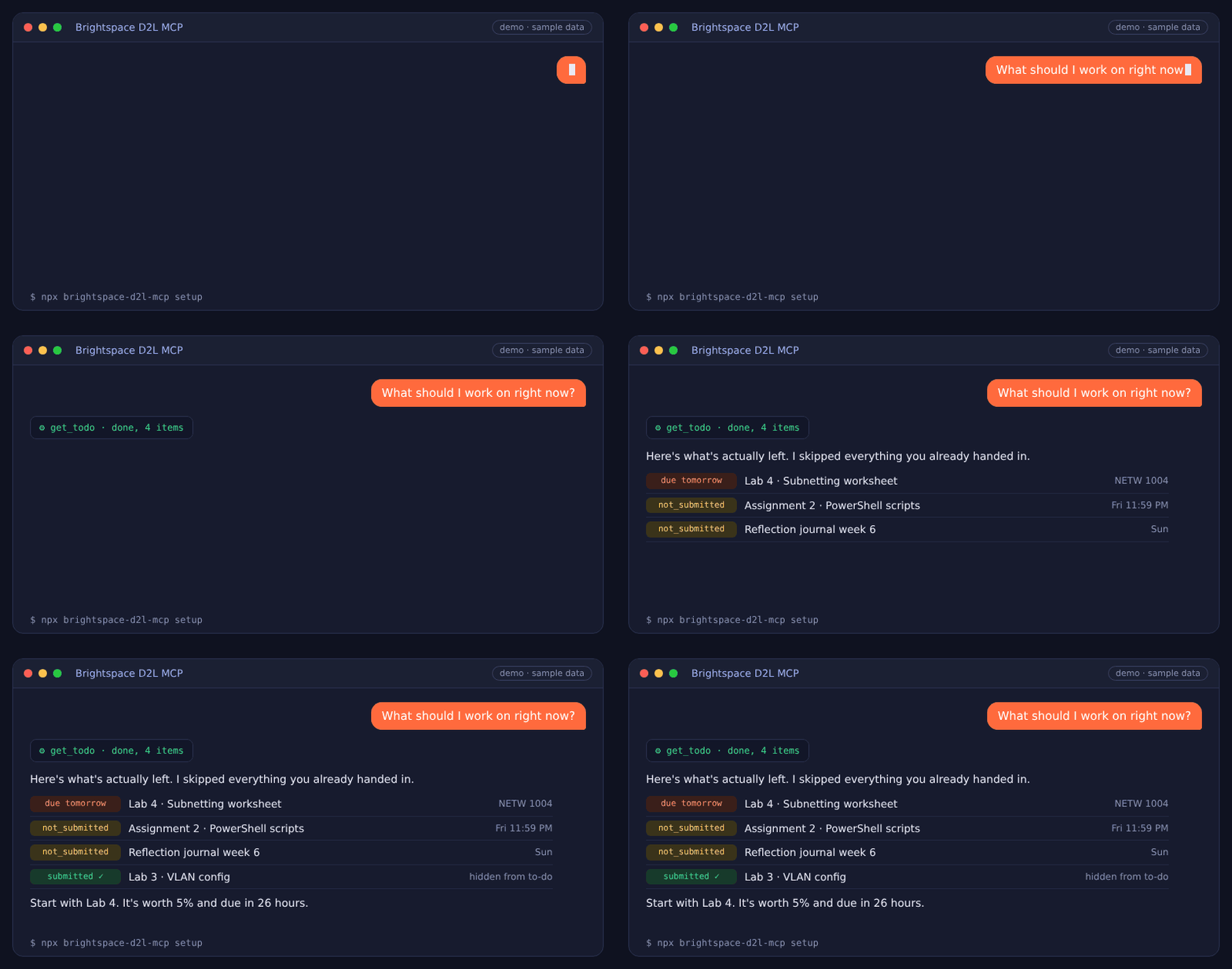
"What should I work on right now?"
"What haven't I submitted yet?"
"What do I need on the final to get an 80?"
"Summarize the rubric for my project."
Is it safe?
It is read-only, so Claude can't submit or change anything in Brightspace. Your password is typed into your school's own sign-in page and never stored. Everything runs on your computer. Your sign-in never leaves your computer.